Welcome to Pinke: Turn Bank Statements Into a Money Map
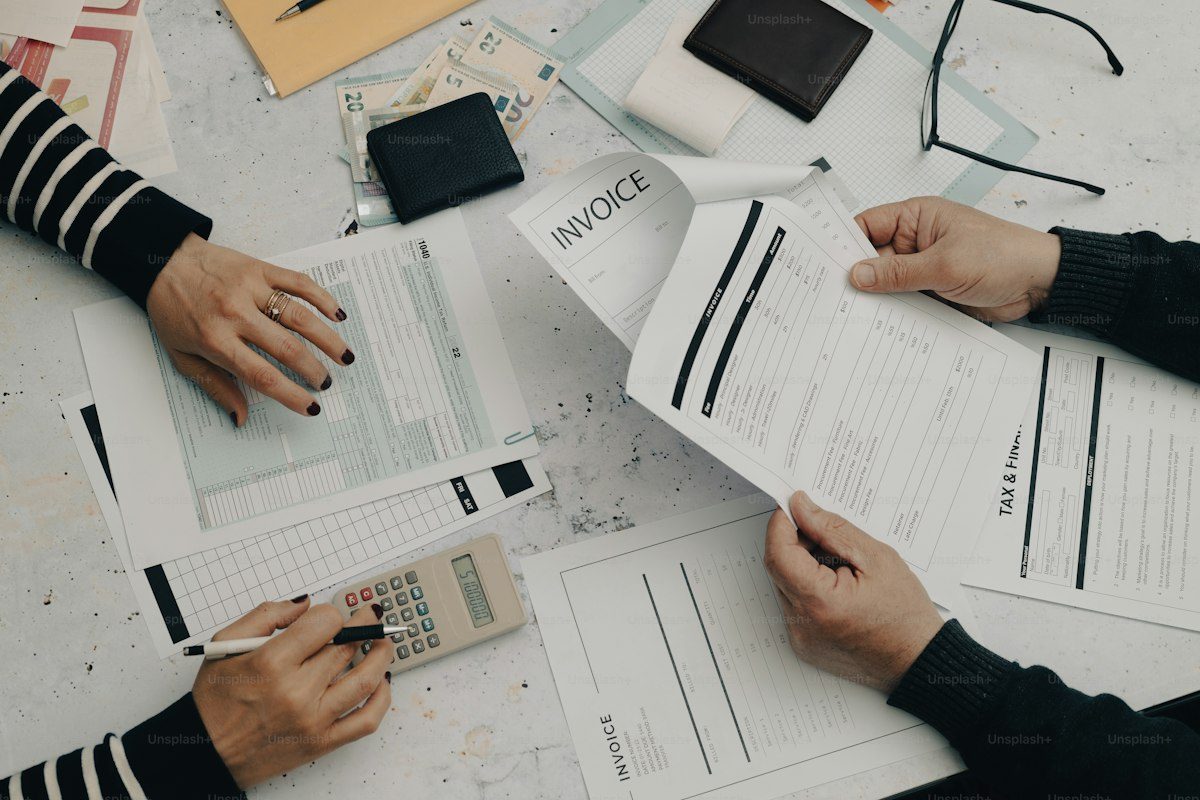
A bank export is a strange thing to read. My Sparkasse statement arrives as a 23-page PDF. The DKB CSV is several hundred rows with no summary line. And a good share of the rows carry names like ECOMM*XZL-4921, which tells me nothing about what I bought.
I wanted to answer one question every month: what are my fixed costs? Answering it by hand took me about three hours of sorting rows in a spreadsheet. After a few months I stopped doing it, and after a few more I wrote Pinke to do the sorting for me.
The short version
You upload a statement, Pinke sorts the rows into categories with rules, and you get charts and reports. There is no spreadsheet to maintain, and the rule that sorted your rent this month will sort it the same way next month.
The spreadsheet that became the final boss
Pinke started as a single spreadsheet where I wrote down what came in and what went out. With a few categories and a few totals, the chaos looked readable for a while.
Then the sheet had to cover more accounts, the kids started school and brought their own costs with them, and I noticed subscriptions I had signed up for and forgotten, the kind I later wrote about in The Silent Drain. Rent went up. So did the electricity bill.
The spreadsheet failed slowly. Shops changed their names, so the same supermarket appeared under two spellings. A refund showed up six weeks after the purchase, and small fees appeared in corners of the sheet I had not planned for. The sheet could hold a total, but it could not tell me why the total had changed since last month.
Every month became a cleanup job. I was maintaining a system instead of tracking my money, so I stopped maintaining it and wrote the tool I wanted.
Why Pinke uses rules
Most months contain the same blocks: rent, groceries, fuel, subscriptions, a few regular shops, and a handful of one-offs. The work is staying consistent while the details shift underneath.
A rule is an instruction you write once: if the text contains this, put it in that category. I chose rules over manual sorting because they hold up over time:
- Predictable: the same rule gives the same result every time
- Transparent: you can see why a transaction landed where it landed
- Easy to fix: when a shop changes its name, you edit one rule instead of 200 rows
- Testable: before you save a rule, you can run it against your history and see what it would catch
Pinke applies rules in a fixed order: your own rules first, then merchant defaults, then the built-in system rules, then a machine-learning guess. Anything still unclear goes to a review queue. Your rules always win. The rules page spells this order out under "How rules work".
For a longer version with more examples, read Rules That Stick: How Pinke Stays Consistent.
Your first import
Say you bank with DKB.
1. Upload the file. Open Import Statements. Under Upload File you can click the box or drag your CSV onto it. Pinke reads exports from Revolut, DKB, Sparkasse, Postbank, Vivid and Trade Republic, some as CSV and some as PDF.
If your bank is missing, the Copy prompt button gives you a text block for converting the export with ChatGPT or Claude. Your data goes to that service, and assistants make mistakes, so check the result before you upload it.
2. Analyze. Your file appears in its own tab. Press Analyze, and Pinke runs the rule order above over every row. When it finishes, the table under the tab shows a category next to each transaction.
3. Fix the odd ones. Most rows land correctly. Say PAYPAL *KAFFEEROESTER for 18,90 € landed in the wrong place. Open Rules, click New rule, and set it up like this: text contains KAFFEEROESTER, category Groceries. Press Test rule against history to see which past rows the rule would catch, then Create rule and analyze again. From now on every order from that roaster lands in Groceries.
4. Look at it. Open Visualize. The charts have silly names, so here is what each one shows:
- Flow Mo' Show: trends and net flow
- The Balancing Act: income against spending over time
- Pie Hard: Expense Edition: where the money went, by slice
- The Paper Trail: every transaction, newest first
- The Subscription Trap™: every charge a rule marked as recurring, grouped by merchant and period, with the next expected date. Three or more occurrences count as an established contract.
- Portfolio Overview: buys, sells, regrets
- Tax Overview: tax-relevant rows for the year
5. Export it. On the report page you filter your rows and tick the ones you want. Press Export next to the Report heading, pick a Format and a Type (Summary, Bill or Landlord), and download the file. If you use the same view often, save it under Presets.
After the first month, the routine shrinks to uploading the new file, pressing Analyze and checking what the rules did with it. A rule you fixed in March keeps working in April, so the cleanup gets shorter every month.
Things that are not in your bank file
Some money never touches a bank account. On Import Statements there is a Manual Account section. Press New Account and add cash, a private loan or a car loan. These rows appear in your charts and reports next to the imported ones.
You can also give a file an opening balance with Set balance, so the running total starts from the right number.
What happens to your data
I built Pinke for my own bank data, and I treat yours the same way.
- No ads
- No tracking
- No analytics
- No selling data
- Only storage that is technically needed, like a session token
- Your uploads exist to show you your own analysis
You should be able to look at your finances without feeling watched. If I ever build something that reaches beyond your own account view, such as comparing patterns across many users, I will ask you first in plain words, and you will be able to turn it off.
What Pinke is
Pinke takes PDFs, CSVs and strange labels and returns a structure that means the same thing next month and next year. That consistency makes changes easy to spot, and it gives you numbers you can discuss with your partner or your tax advisor.
I am still building, from a desk in Bernau just outside Berlin. Importing should need less cleanup, and the charts should stay readable as the data grows. If you have a use case I have not thought of, tell me. Pinke started as something I needed, and I suspect a few other people need it too.
Open Import Statements, drop in your last statement, and press Analyze. Then check what the rules did with it and fix the first one that got it wrong.
Frequently asked questions
Upload your bank export to Pinke as CSV or PDF and press Analyze. Pinke sorts every transaction with rules: your own rules first, then merchant defaults, then the built-in system rules, then a machine-learning guess. Anything still unclear goes to a review queue.
Yes. Pinke works from the statement files your bank already gives you, so you never enter online banking credentials or link an account. You upload a CSV or PDF export and Pinke sorts it.
Pinke reads exports from Revolut, DKB, Sparkasse, Postbank, Vivid and Trade Republic, some as CSV and some as PDF. For other banks, the Copy prompt button gives you a text block for converting your export with an AI assistant. That sends your data to that service, so check the result before uploading.
After analyzing your statements, open The Subscription Trap™ view. It groups every charge a rule marked as recurring by merchant and period, counts how often it appeared, and shows the next expected payment date.
No. There are no ads, no tracking, no analytics and no data selling. Pinke stores only what it technically needs, such as a session token, and your uploads exist to show you your own analysis.
Read next
- 2026-04-01 The Financial Information Gap: Turning a Bank Statement Into an Overview Your bank statement is 300 lines of cryptic text, not an overview. How to categorize a bank statement export and see where your money actually goes.
- 2026-09-25 Connect Your Own AI: Categorize Bank Transactions Without Handing Over Your Data Use ChatGPT or Claude to categorize bank transactions in Pinke. No AI runs inside Pinke; you hand your own assistant a token that expires after 7 days.
- 2026-08-01 Werbungskosten, § 35a & Co.: Find Tax Deductions in Your Bank Statements Find the tax deductions hiding in your bank statements: Pinke flags contractor bills, donations and more at import and sorts them by German deduction category.